

Organizations
Organizations are a way to share groups of apps with people. This is useful for any team collaborating across a company to have access as needed to releases, patches, and more.
Account requirements
Section titled “Account requirements”Shorebird’s paid plans unlock features for collaborating with your peers. Shorebird’s free plan users can upgrade to a paid plan to access these features. See Plans & Upgrading for how.
If you do not see the plan you’re expecting, please reach out to contact@shorebird.dev for help.
Creating an organization
Section titled “Creating an organization”To create an organization, open the Shorebird console and click the organization’s name at the top of the sidebar. In the switcher that opens, click “New organization”, enter a name, and click “Create organization”. You can rename it later in the organization’s settings.
Creating an organization needs a paid plan of your own. On the Free plan, the switcher shows “Upgrade to create an organization” instead.
Managing apps
Section titled “Managing apps”Organizations can have multiple apps associated with them. You can either transfer existing apps to an organization or create new apps within the organization directly.
Create a new app
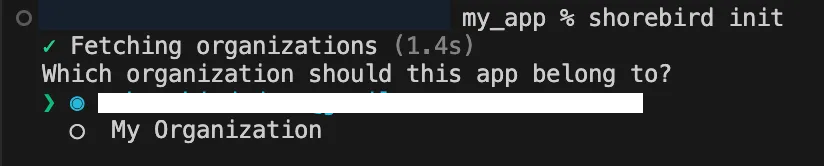
Section titled “Create a new app”To create a new app within an organization, select the organization when running
shorebird init:
Transfer an app
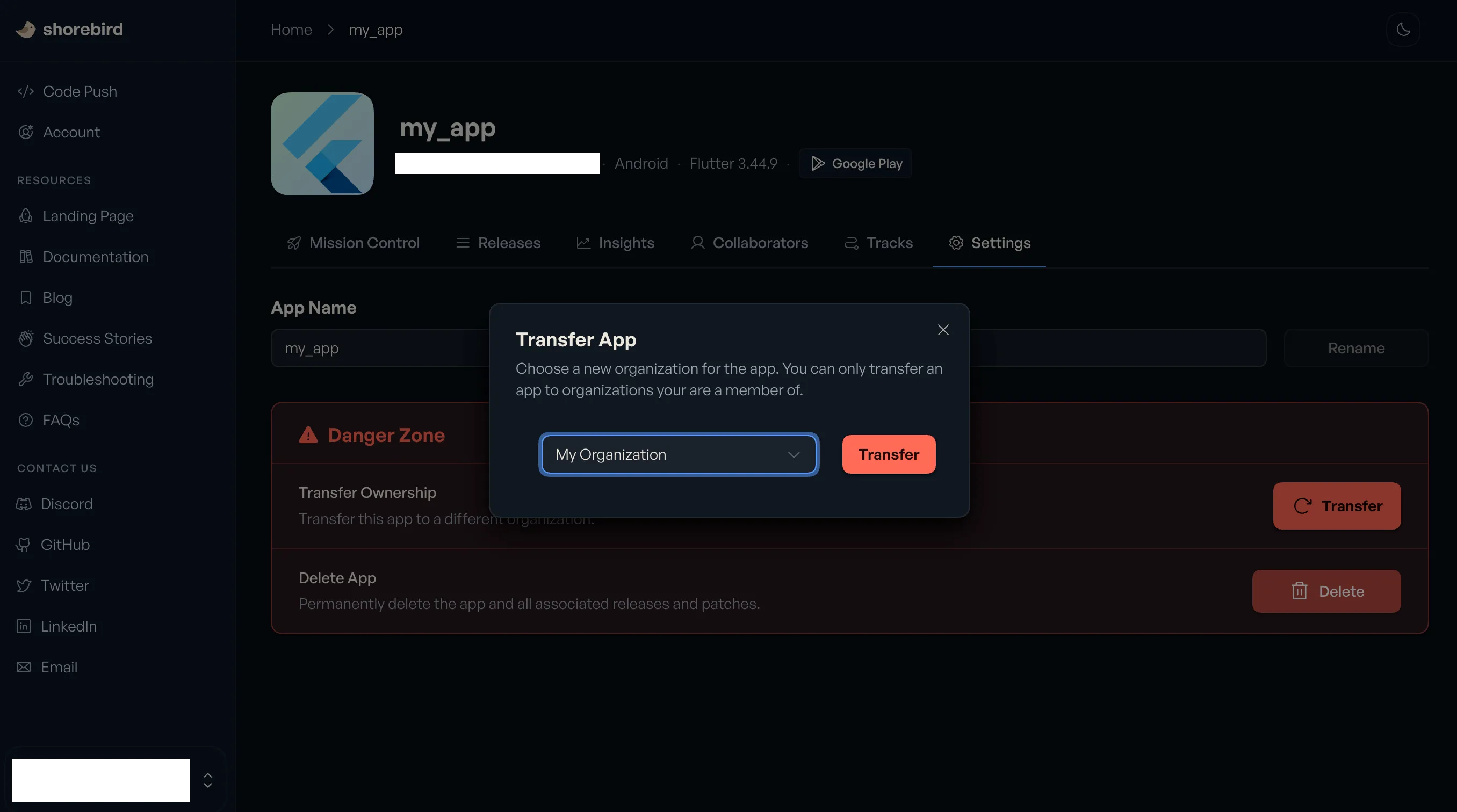
Section titled “Transfer an app”To transfer an existing app to an organization, visit the app’s settings and click the “Transfer” button beside the “Transfer Ownership” section. You can then select the organization you want to transfer the app to from the dropdown. You must be an admin or owner of both the app’s current organization and the one you transfer it to. Organizations where you aren’t are shown in the dropdown but can’t be selected, and if you aren’t an admin or owner of the app’s current organization, the “Transfer” button is disabled.
The app’s releases, patches and collaborators move with it, and collaborators keep their access. Members of the old organization lose access to the app unless they are also in the new one or are collaborators on the app. Their API keys stop working for the app too, so update any CI that uses one.
Usage follows the app’s current organization. All of the app’s installs in the new organization owner’s current billing period, including installs from before the transfer, count toward that owner’s usage and plan limits. Check that the new owner’s plan has room before transferring a high-traffic app.
You can also transfer an app from the command line with
shorebird apps transfer.
Managing members
Section titled “Managing members”Add a member
Section titled “Add a member”To add one or more members to your organization, visit the organization’s settings, go to “Members” section and click the “Invite Member” button.
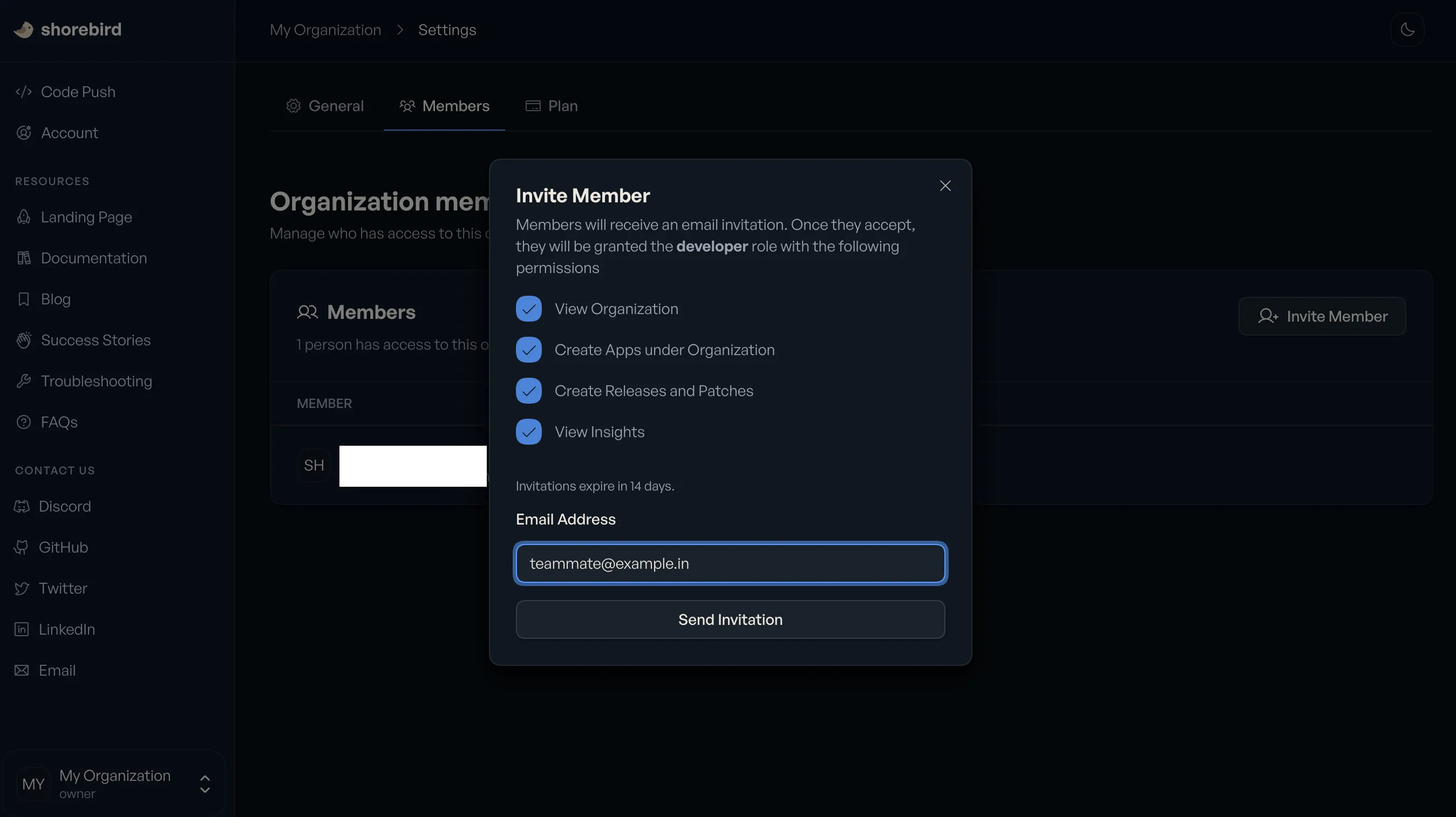
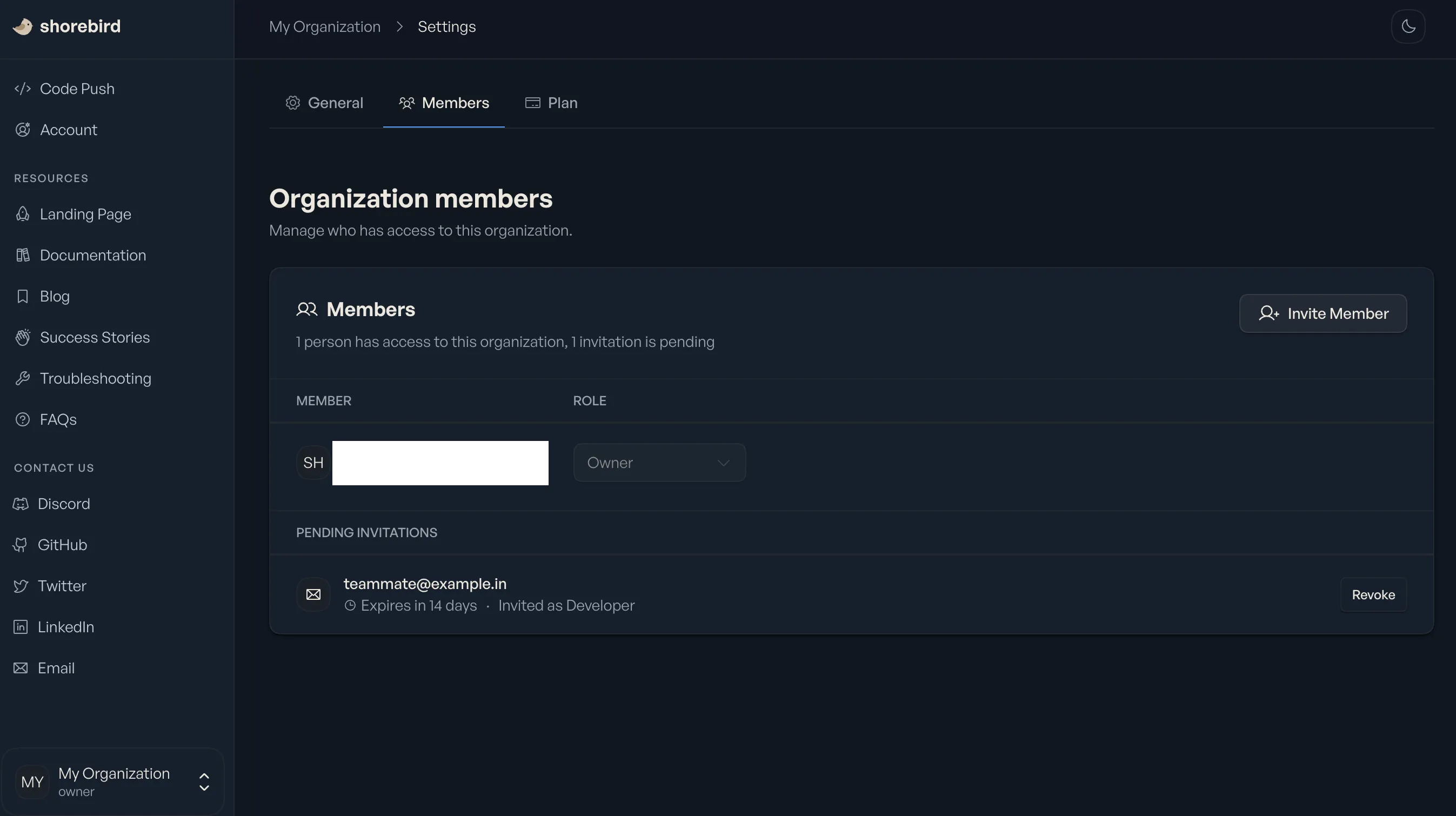
You can also edit a member’s role or remove them from the organization from the same members page.
Remove a member
Section titled “Remove a member”To remove a member, open the organization’s settings and go to the “Members” section. Click the ⋮ menu next to the member, choose “Remove”, and confirm.
Accept an invitation
Section titled “Accept an invitation”When someone invites you to an organization, Shorebird emails you a link to accept it. You can also see and answer your pending invitations from the command line:
Each line shows the invitation’s id, the organization or app name, its kind, the role you’d get, who sent it, and when it was sent and expires. Accept or decline one by its id:
Sign in as the invited email address first. If you’re signed in as a different
account, the CLI tells you to run shorebird account whoami and
shorebird login. Service account keys and release and patch only API keys
can’t answer invitations.
shorebird invitations needs Shorebird 1.6.130 or newer.
Member roles
Section titled “Member roles”Organization roles apply to all apps within the organization and can be managed via the organization settings page in the Shorebird console. The roles you can give members depend on the organization’s plan, which is its owner’s plan.
| Free | Pro | Business | Enterprise | |
|---|---|---|---|---|
| Viewer | ✅ | ✅ | ✅ | |
| Developer | ✅ | ✅ | ✅ | ✅ |
| App Manager | ✅ | |||
| Admin | ✅ | ✅ | ✅ | |
| Owner | ✅ | ✅ | ✅ | ✅ |
Service accounts hold roles too, with their own choices: Viewer, Developer, App Manager, or Auditor, on every plan.
Viewer
Section titled “Viewer”Read-only access for stakeholders who need visibility into apps, releases, and patches without the ability to make changes. Ideal for product managers, QA, support, or leadership teams.
Developer
Section titled “Developer”Hands-on role for engineers actively building and shipping apps. Can create releases and patches, promote patches, and manage day-to-day development workflows without administrative access.
App manager
Section titled “App manager”Responsible for managing application lifecycle and release strategy. Has all Developer capabilities plus elevated control over app-level configuration, environments, and release coordination.
Administrative role for managing team access and organization-level settings. Can configure apps, manage users and roles, and handle most operational tasks, excluding billing and plan changes.
Full control over the organization. Can manage billing and plans, ownership settings, and all platform capabilities. Intended for primary account holders.
Billing & ownership
Section titled “Billing & ownership”Each organization has a single owner. An organization’s plan is determined by its owner’s subscription. Their Shorebird subscription is what sets the plan and available features for the entire organization.
To manage billing, the organization owner can visit the billing settings in the Shorebird console. See Billing for more details.
Per-app collaborators
Section titled “Per-app collaborators”Shorebird no longer adds new per-app collaborators. To give someone access to an app, add them as a member of the organization that owns it. A member’s role applies to every app the organization owns.
- If the app is in your personal account, which can’t have members, create an organization, transfer the app into it, and invite people there.
- To share some apps but not others, create a separate organization for them, transfer those apps into it, and invite people there.
Existing collaborators keep their access for now. From the app’s “Collaborators” tab you can still change a collaborator’s role, remove them from the ⋮ menu next to their email address, and revoke invitations that haven’t been accepted. If you were invited to an app before this change, you can still accept the invitation.