

Billing
Billing should never be a blocker to using Shorebird’s tools. Customers are met where they are, whether that means flexible payment methods, enterprise invoicing, or custom terms. If you’re building with Flutter, building with Shorebird should be just as easy.
Payment provider - Stripe
Section titled “Payment provider - Stripe”Shorebird uses Stripe for all billing and payments, and accepts any payment method that Stripe supports. You can view more details in Stripe’s Supported Payment Methods documentation.
Billing email
Section titled “Billing email”Invoices are sent at the end of each billing period by Stripe. Since they are sent by Stripe, they do not use your Shorebird account email, but rather the email associated with your Stripe account. In most cases, these emails are the same, but you can change them to be different.
If you’d like invoices sent to a different email address than the one you use to log in, you can change this in Stripe:
- Navigate to your “Account” panel within Shorebird.
- Click on the drop-down menu on the right side.
- Select “View Billing Portal”.
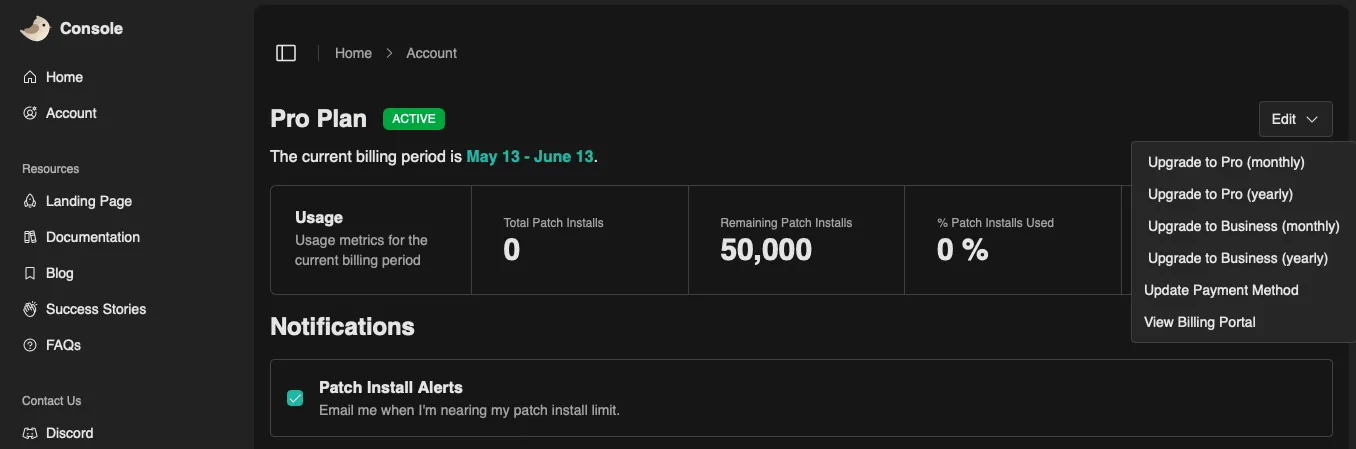
This will open Stripe’s billing portal, where you can update your Stripe email, which is where invoices are sent.
Available plans
Section titled “Available plans”Flexible options are provided to accommodate every team and product, whether it’s an indie/hobby project or a globally launched enterprise application. See the pricing page for more information.
Most customers can easily get started with the self-service Pro and Business plans; see Plans & Upgrading for how to upgrade, switch, or cancel. If you need invoice billing, tax support, alternative payment methods, custom contract/procurement process, or support for more than 2.5 million patches per month, please reach out regarding an Enterprise Plan.
Organizations & billing
Section titled “Organizations & billing”Billing is tied to the organization’s owner’s account, not to individual organizations. When you create an organization, it inherits its plan from your subscription. This means a single account can own multiple organizations and each organization will share the owner’s plan.
For more information on how organizations and ownership work, see Organizations.
How Shorebird bills
Section titled “How Shorebird bills”Shorebird charges based on successful patch installs. A “patch install” is a successful update applied on a customer’s device.
- Patch installs are only billed upon successful download and application of a patch.
- Users always skip to the latest patch. If you send two patches before a user updates, you’re only billed for one patch install for that user.
- You are not charged if the user never launches the patched application.
You can view your current patch installs in your account page on the Shorebird Console. These numbers are updated hourly.
Overage billing
Section titled “Overage billing”For monthly plans, optional overage billing is available. This is turned off by default.
Customers can control their spending limits in the Shorebird Console. Your spending limit defaults to the price of your plan. The account owner will be notified via email once when you’re close to your limit, and again when you’ve reached your limit.
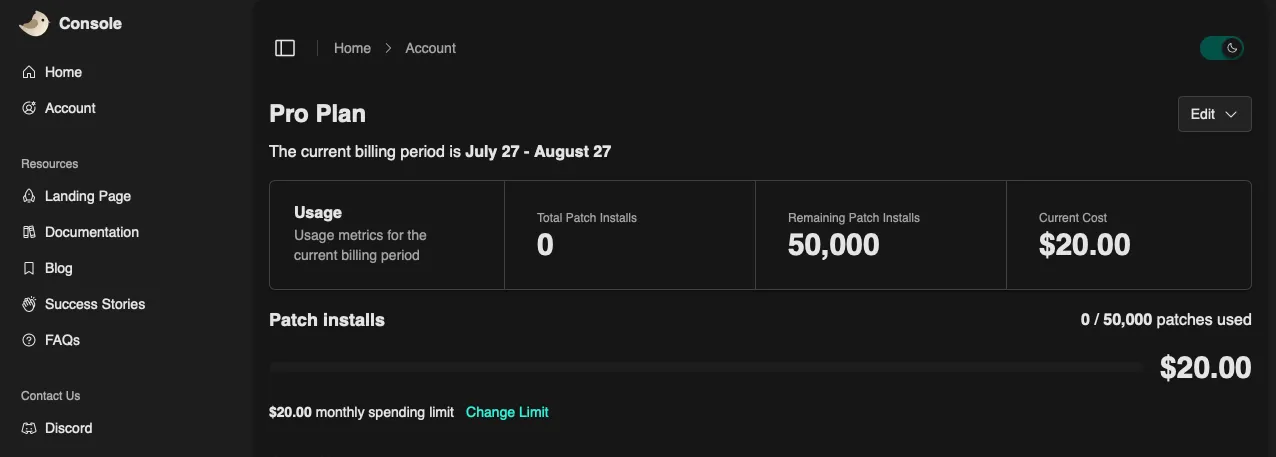
Clicking the “Change Limit” button lets you set a new spending limit and see the corresponding number of patches available for your billing cycle.
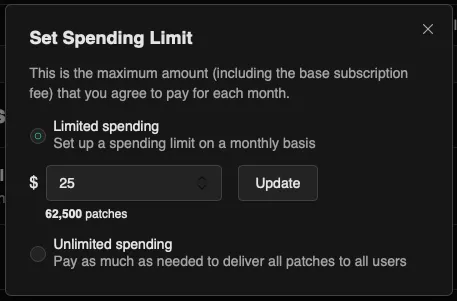
Overage charges appear on the next month’s invoice.
Example
Section titled “Example”If you purchase a Pro plan (which includes 50,000 patch installs) and use 100,000 patches every month:
- You’ll be billed $20 at the time of purchase (Month 1)
- At the start of each subsequent month, you’ll be billed for the 50,000 patch installs for that month, plus the 50,000 overages from the previous month, for a total of $40.