

Organizations
Organizations are a way to share groups of apps with people. This is useful for any team collaborating across a company to have access as needed to releases, patches, and more.
Account requirements
Section titled “Account requirements”Shorebird’s paid plans unlock features for collaborating with your peers. Shorebird’s free plan users can upgrade to a paid plan to access these features via the account settings page in the Shorebird console.
If you do not see the plan you’re expecting, please reach out to contact@shorebird.dev for help.
Creating an organization
Section titled “Creating an organization”To create an organization, visit the Shorebird console and click the account dropdown in the top left corner. From there, click the ”+” button next to “Organizations”.
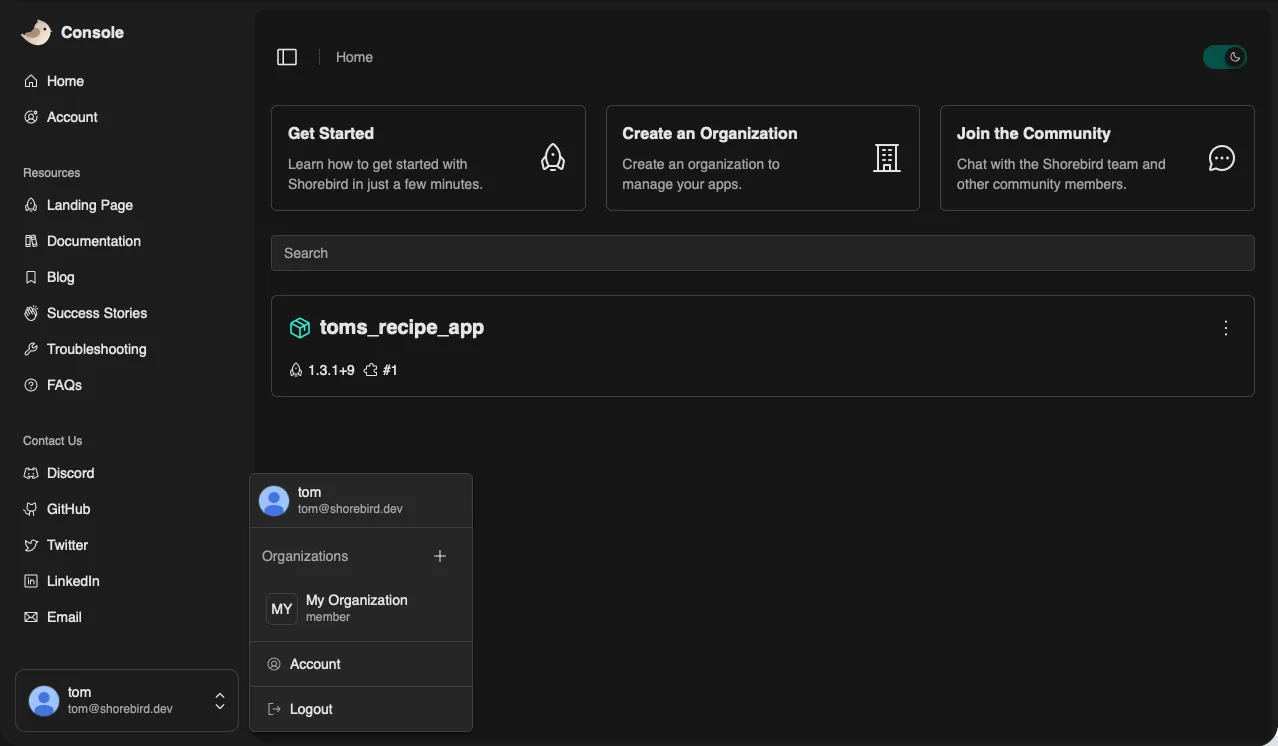
This will automatically create a new organization called “My Organization”. You can head over to the organization’s settings to change its details, including the name.
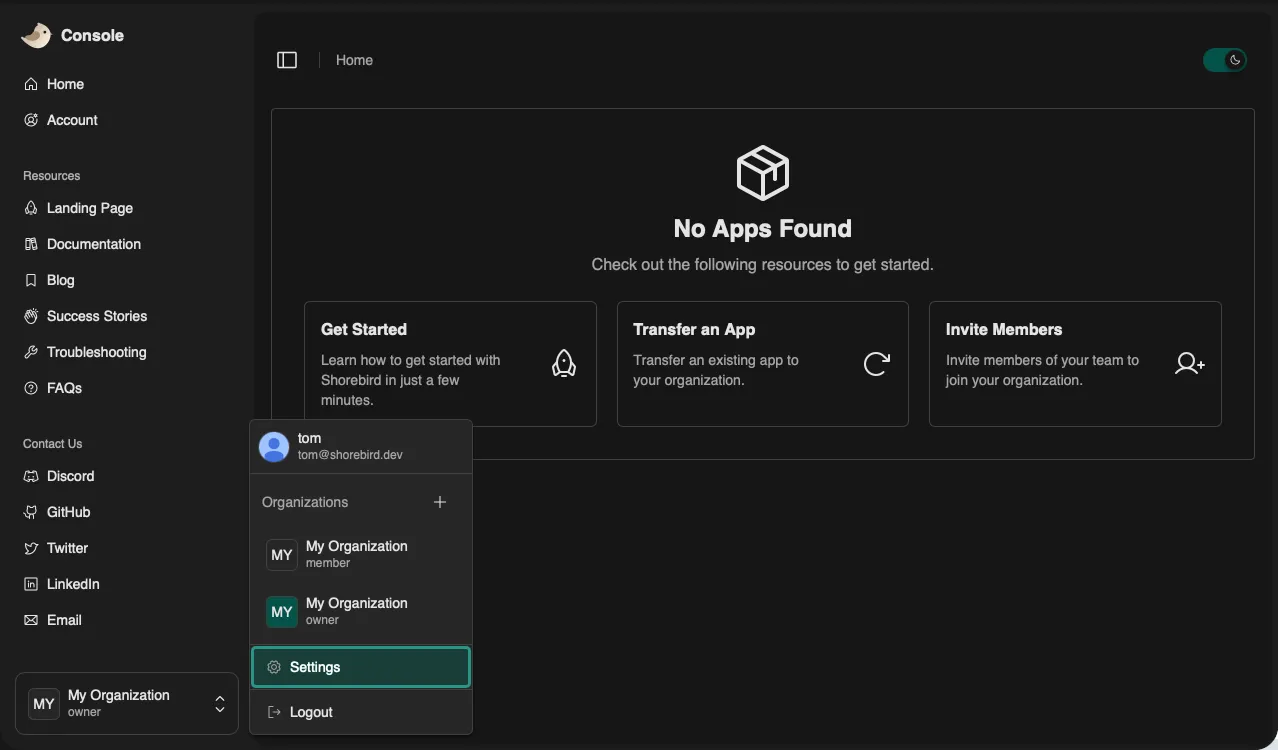
Managing apps
Section titled “Managing apps”Organizations can have multiple apps associated with them. You can either transfer existing apps to an organization or create new apps within the organization directly.
Create a new app
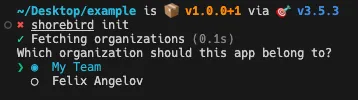
Section titled “Create a new app”To create a new app within an organization, select the organization when running
shorebird init:
Transfer an app
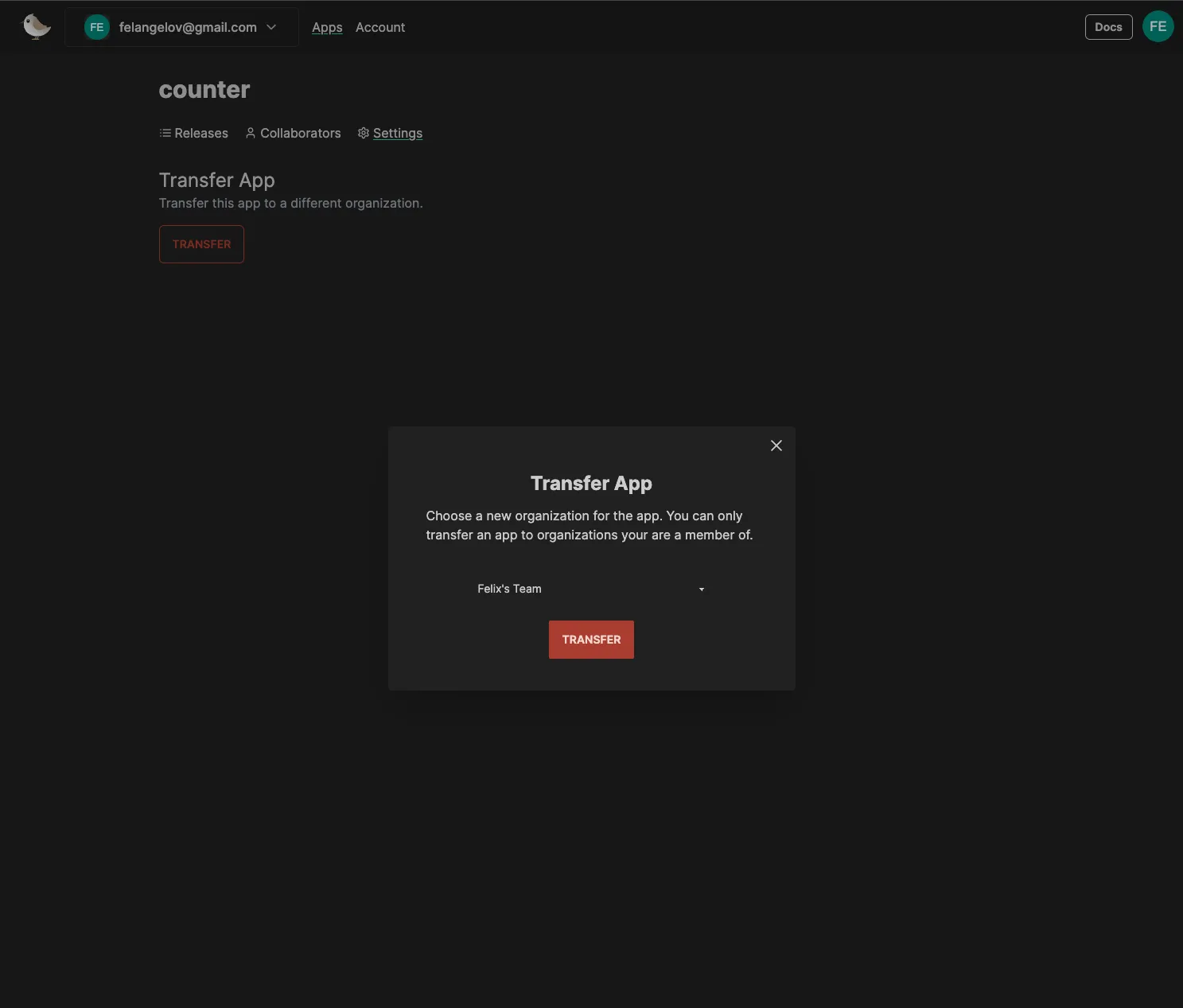
Section titled “Transfer an app”To transfer an existing app to an organization, visit the app’s settings and click the “Transfer app” button. You can then select the organization you want to transfer the app to from the dropdown.
Managing members
Section titled “Managing members”Add a member
Section titled “Add a member”To add one or more members to your organization, visit the organization’s settings and click the “Add member” button.
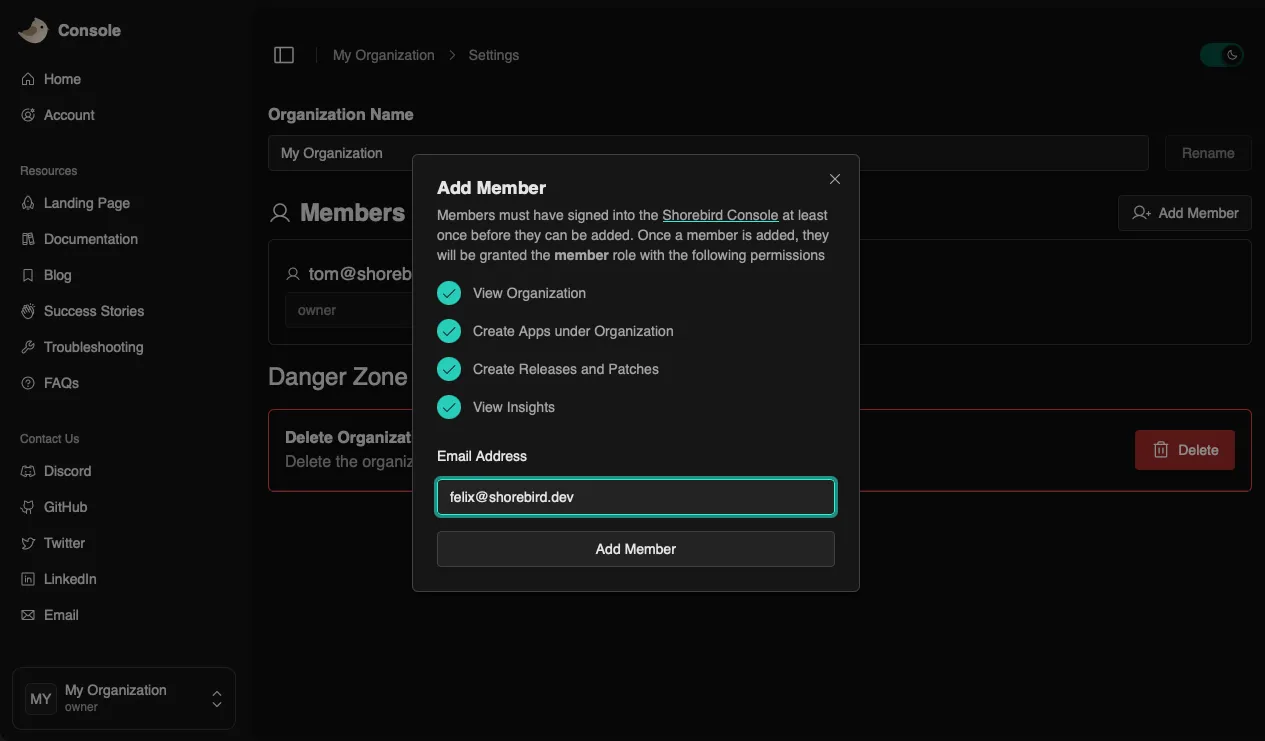
You can also edit a member’s role or remove them from the organization from the same organization settings page.
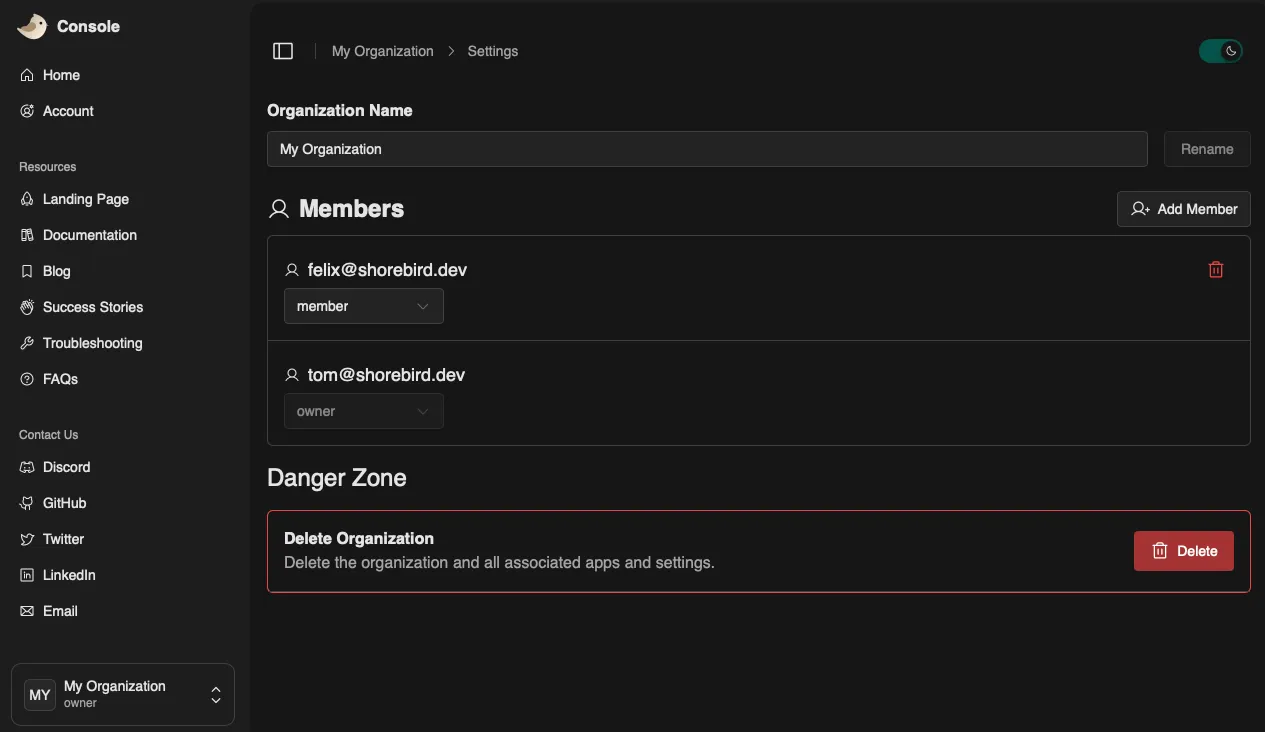
Remove a member
Section titled “Remove a member”You can easily remove a member from an organization via the organization’s settings page. Locate the member you wish to remove, click the Trash icon, and confirm the action.
Member roles
Section titled “Member roles”Organization roles apply to all apps within the organization and can be managed via the organization settings page in the Shorebird console. The roles available to you are based on the plan that you have.
| Free | Pro | Business | Enterprise | |
|---|---|---|---|---|
| Viewer | ✅ | ✅ | ||
| Developer | ✅ | ✅ | ✅ | |
| App Manager | ✅ | |||
| Admin | ✅ | ✅ | ✅ | |
| Owner | ✅ | ✅ | ✅ |
Viewer
Section titled “Viewer”Read-only access for stakeholders who need visibility into apps, releases, and patches without the ability to make changes. Ideal for product managers, QA, support, or leadership teams.
Developer
Section titled “Developer”Hands-on role for engineers actively building and shipping apps. Can create releases and patches, promote patches, and manage day-to-day development workflows without administrative access.
App manager
Section titled “App manager”Responsible for managing application lifecycle and release strategy. Has all Developer capabilities plus elevated control over app-level configuration, environments, and release coordination.
Administrative role for managing team access and organization-level settings. Can configure apps, manage users and roles, and handle most operational tasks, excluding billing and plan changes.
Full control over the organization. Can manage billing and plans, ownership settings, and all platform capabilities. Intended for primary account holders.
Billing & ownership
Section titled “Billing & ownership”Each organization has a single owner. An organization’s plan is determined by its owner’s subscription. Their Shorebird subscription is what sets the plan and available features for the entire organization.
To manage billing, the organization owner can visit the billing settings in the Shorebird console. See Billing for more details.
Managing per app collaborators
Section titled “Managing per app collaborators”Per-app collaborators can also be added and managed via the Shorebird console. The same management and permissions structure of organizations applies to collaborators, just at a per-app level.
To add a collaborator, from your app’s page:
- Select the “Collaborators” tab.
- Click “Add people”.
- Enter the email address of the person you would like to add as a
collaborator.
- Note that the email address must be associated with an existing Shorebird account.
- Click “Add Collaborator”.
Existing collaborators can be removed by clicking the trash icon next to their email address.